

Launch Grackle Docs & Verify Installation
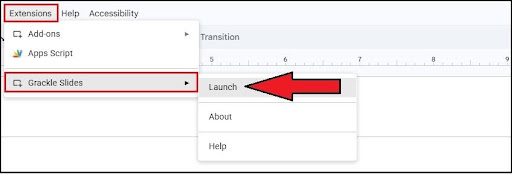
In Google Slides, click Extensions > Grackle Docs > Launch.
Extension not Found: Install Grackle Slides and review Grackle Docs Accessibility Checker for extension download instructions.
Grackle Status Indicators
Green Check = Passed automated test.
Green Checkmark with Exclamation: Passed with warning: manual review suggested
Red x: Failed automated test. Action is required to resolve the accessibility error.
Fix it with Grackle Slides
Presentation Settings and Language
+
Presentation Title Required: Open Grackle Slides, select Presentation title is required, and select Edit or check Use the Google Slides name.
Presentation Language: Select File > Language from the top Google Slides menu and select your primary language.
Alternative Text
+
Images, Drawings & Shapes: Select the image, shape, or diagram, click Format options in the top toolbar, select Alt Text, and enter your description into the Description field (or select Mark as Artifact in Grackle for decorative visuals).
Slide Titles and Structure
+
- Slide Titles Required: Every slide must have a title element using Google Slides' native layouts (Slide > Apply layout).
- Unique Titles: Ensure every slide has a unique title (e.g., Project Overview – Part 1, Project Overview – Part 2) so screen readers can navigate effectively.
- Reading Order: Select Reading order of slide elements in the Grackle sidebar to adjust object order so screen readers process slide elements in a logical sequence (top-to-bottom, left-to-right).
Tables and Lists
+
- Tag Tables: Click Tables should be tagged or marked as layout tables in Grackle, select +TAG, and specify header rows and columns.
- Merged & Empty Cells: Avoid merged cells and fill blank cells with descriptive text or placeholders like "N/A".
- Lists: Create bulleted or numbered lists using the built-in Bulleted list or Numbered list toolbar buttons rather than manually typing dashes, numbers, or splitting lists across multiple text boxes.
Links
+
Description: Use a clear and concise text description for links (e.g. Office of Digital Accessibility website at UIS, UIS Office of Digital Accessibility). Highlight the text where you want the link, press Ctrl + K (Windows) or Cmd + K (Mac) to open the link menu, click Headings and bookmarks at the bottom, and select your heading or bookmark.
Navigable: verify the linked text directs to the correct resource.
Color Contrast and Font
+
Color Contrast: Verify text contrast ratio is sufficient. Small text has at least a 4.5.1 contrast ratio against the background (3:1 for large text).
Font Size: Use easy to read sans-serif fonts at 12pt font size, maintain left- alignment for body text, and avoid all caps styling
Save and Export
+
Accessibility Check: Verify content displays all green checkmarks and manually review content for accessibility errors.
Export to PDF: Select Export to PDF at the top of the Grackle sidebar. Choose whether to save the file directly to your Google Drive or download it to your computer.
Note: Make sure to use Export to PDF in the Grackle sidebar instead of File > Download > PDF Document in Google Slides, as Export PDF will ensure the tag structure, reading order, and alt text are transferred.
Resource type