

Grackle Accessibility Tool
Grackle is an automated checker extension that can be used to verify accessibility of Google Workspace applications such as Google Docs, Google Slides, and Google Sheets.
Installation Guide
How to Install Grackle Docs
1. Sign into your UIS Account
+
- Login to Google Docs, Slides, or Sheets using your @uis.edu email.
- Confirm: Review the top right corner of the browser window to confirm you are a signed into your university account.
2. Open Workspace Marketplace
+
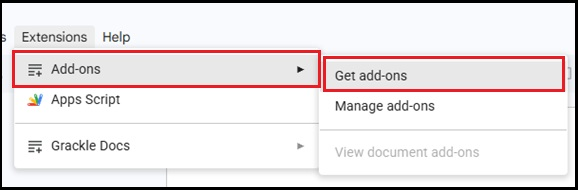
In the top menu bar, click Extensions, Add-ons, Get add-ons
3. Locate & Install
+
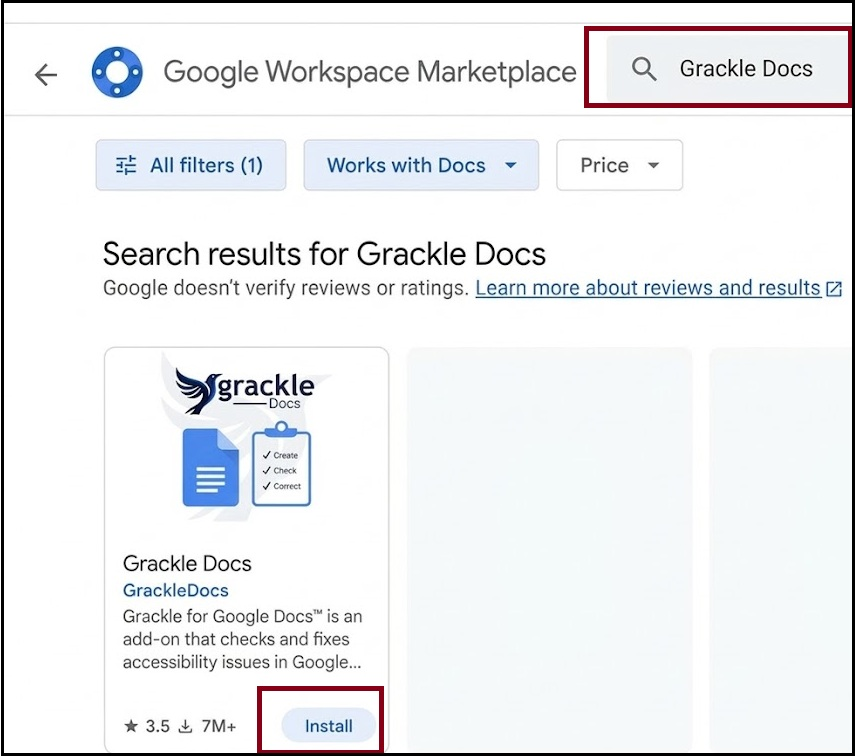
Locate: Type Grackle Docs, Grackle Slides, or Grackle Sheets into the marketplace search bar and select install.
Install: Click Install > Continue, choose your @uis.edu account, and click Allow. A prompt will confirm that Grackle Docs has been installed.
4. Launch Grackle
+
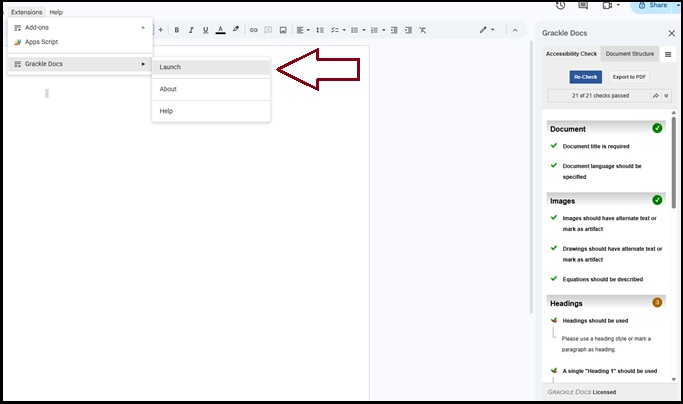
Launch Grackle: In your document, click Extensions > Grackle Docs > Launch. Grackle Docs will open on the right side of the screen.
Troubleshooting
If Grackle is missing after installation, check the following:
Confirm university account: Sign out of personal Google accounts and log in with your UIS email and password.
Verify File Format: Ensure you are editing a native Google file. If you see a .DOCX badge by the title, click File > Save as Google Docs.
Refresh Page: Refresh your browser tab (Ctrl + R or Cmd + R) to reload your Workspace add-ons.
Resource type