

Launch Grackle Docs & Verify Installation
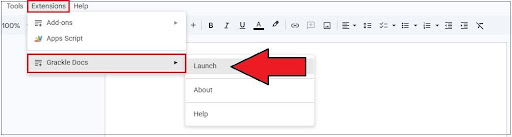
In Google Docs, click Extensions > Grackle Docs > Launch.
If Extension is Found: Install Grackle Docs and review Grackle Docs Accessibility Checker for extension download instructions.
Grackle Status Indicators
Green Check = Passed automated test.
Green Checkmark with Exclamation: Passed with warning: manual review suggested
Red x: Failed automated test. Action is required to resolve the accessibility error.
Fix it with Grackle Docs
Document Settings & Language
+
Document title is required: Open Grackle Docs, select Document title is required, and select Edit or check Use the Google Doc name.
Document language should be specified: Select File > Language from the top Google menu and select your primary language.
Alternative Text
+
Images & Drawings: Select the image or drawing, select Image Options in the toolbar, select Alt Text, and type your descriptions.
Equations: Select Equations should be described in Grackle, Click TAG, and enter alt text describing the mathematical expressions.
Headings
+
Format Styles: Format structural titles using Google Docs' native Styles dropdown (Heading 1, Heading 2) rather than manually bolding text.
Heading Level 1 for Title: The title of your document should only contain a Heading Level 1.
Proper Nesting: Follow a logical heading hierarchy (H1 → H2 → H3) without skipping heading levels.
Tables & Lists
+
Tag Tables: Click Tables must be tagged or marked as layout tables in Grackle, select +Tag, and specify header rows and columns.
Merged & Empty Cells: Avoid merged cells (right-click > Unmerge) and fill blank cells with descriptive text or placeholders like "N/A".
Lists: Create bulleted or numbered lists using the built-in Bulleted list or Numbered list toolbar buttons rather than manually typing dashes or numbers
Links
+
Description: Use a clear and concise text description for links (e.g. Office of Digital Accessibility website at UIS, UIS Office of Digital Accessibility). Highlight the text where you want the link, press Ctrl + K (Windows) or Cmd + K (Mac) to open the link menu, click Headings and bookmarks at the bottom, and select your heading or bookmark.
Navigable: verify the linked text directs to the correct resource.
Font and Color Contrast
+
Color Contrast: Verify text contrast ratio is sufficient. Small text has at least a 4.5.1 contrast ratio against the background (3:1 for large text).
Font Size: Use easy to read sans-serif fonts at 12pt font size, maintain left- alignment for body text, and avoid all caps styling.
Save and Export
+
Accessibility Check: Verify content displays all green checkmarks and manually review content for accessibility errors.
Export to PDF: Select Export to PDF at the top of the Grackle sidebar. Choose whether to save the file directly to your Google Drive or download it to your computer.
Note: Make sure to use the “Export to PDF” instead of “Download PDF” in Google Docs, as Export PDF will ensure the tag structure is transferred.
Resource type