Image
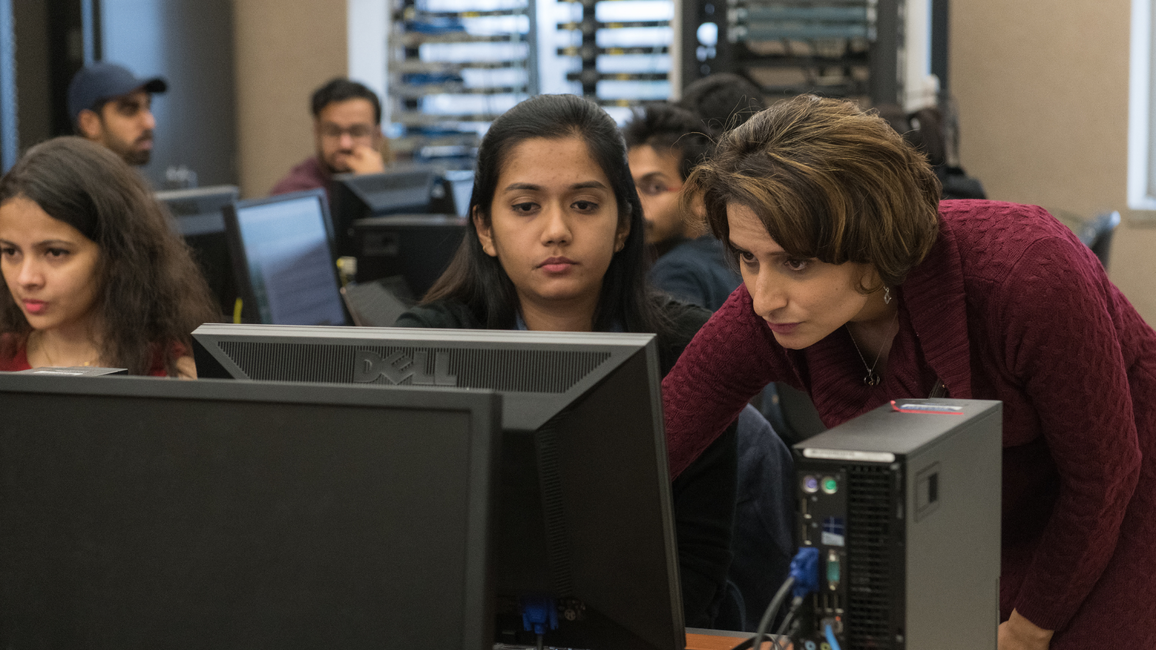



With the start of the semester upon us, we wanted to remind you of the many tools and resources that are available to support you and your students.
Please contact us if you would like to talk more about any of these tools. You can also check out our UIS Knowledge Base for quick access to articles and support materials about services. We look forward to hearing from you!
Many of our classrooms boast hyflex features as well as additional teaching and learning tools such as a second monitor, an annotating monitor, a document camera, and BYOD capabilities. These classrooms support the HyFlex teaching pedagogy, where students can choose to learn in person, remotely via Zoom, or asynchronously. In addition, we have three small huddle rooms that are perfect for small group Zoom sessions, recordings, online conference attendance/presentations, interviews, etc. If you are teaching in UHB, check out the classroom technology tutorial. To request a tour of your classrooms, please reach out to Kara McElwrath at kmcel2@uis.edu.
For those teaching in a computer lab, we have a new monitoring solution called Veyon, which allows instructors to monitor and control the lab computers - block websites, view student screens, display student screens on the projector, distribute/collect files, broadcast your screen to students, and more. Veyon is replacing NetOps Vision. If you would like to learn more, please reach out to Kara McElwrath at kmcel2@uis.edu.
All classroom and lab computers are connected to the managed Ricoh devices for printing. Please see our UIS Printing articles for more information about printing and scanning on campus.
Huge thanks goes to our Facilities & Services team - the UHB computer labs boast freshly polished floors and new chairs for students!
Please use the Instructional Technology Request Form to request specialized software and/or hardware for your classroom/lab. Special requests might include a card reader for taking attendance, a DVD player, software you'd like installed on the instructor station and/or student stations, etc.
As a reminder, please be sure to log out of the computer and turn off the control panel at the end of class. This ensures a more reliable experience for the faculty using the classroom after you. To log off the computer, click your name at the bottom of the screen, then click the 3 dots and select Sign out. To turn off the control panel, tap the screen and then tap System Off.
Kaltura Capture makes it easy for users to create and upload videos to Kaltura through our Learning Management System [Canvas] or through UIS MediaSpace, available for Windows or Mac. Recorded videos can be a combination of webcams and/or screen recordings. Kaltura also allows you to create video quizzes, splicing questions throughout your video.
Please visit the Kaltura Capture webpage for installation instructions.
Technology Support for Your Students
Please encourage your students to reach out to ITS for technology assistance - including our short-term check out program for a laptop or webcam, support using Canvas, and so much more. We are available to support students (and faculty!) via email, phone, live chat, or in person.
While we strive to ensure classroom technology is working smoothly, when there are issues, ITS wants to make it easy for faculty to report concerns. For those of you teaching on campus, you will see a Report Issues shortcut on the desktop of the instructor station in each classroom/lab. Simply double-click that icon to report any issues or concerns you may have. We will follow up with you to address them.
We welcome all feedback, so please do not hesitate to share any issues and recommendations with us. We rely on your feedback to help us improve our services.
For faculty interested in taking attendance in on-campus courses, ITS offers a web-based application. This app also includes a picture roster of your students so you can get to know their names and faces even if you do not use the app to take attendance! Faculty can also sync attendance directly to the Canvas gradebook. You can check out the Attendance App.
Zoom is UIS' campus solution for online collaborations, allowing users to communicate in live-time via instant message, audio and/or video chat, and desktop sharing. Zoom is a great tool for communicating with online students - to host class sessions, to offer office hours, for students to collaborate on group projects, and more. Please check out our Zoom webpage for information on how to download and start using Zoom.
In an effort to improve the ease of access of instructional software, users may take advantage of Citrix Virtual Desktop. This process allows users (whether on or off campus) to access a virtual computer that runs software for which UIS has licensing. Citrix Virtual Desktop runs on all platforms, including mobile devices. Citrix is running Windows 11 with a semester-long storage quota of 1 GB. Please note that Citrix does not require a VPN connection.
Also of note, Copyleaks has been retired and Turnitin will be available starting in the fall semester to support academic integrity efforts. Please keep your eye out for the COLRS Catch Up message on Tuesday, August 25 for more details and information about upcoming trainings.
UIS has a great solution for getting the training you need when you need it - LinkedIn Learning. LinkedIn Learning offers video tutorials on hundreds of different software applications; links to these videos can be posted in Canvas, making it easy for students to gain the skills they need to be successful. Additionally, LinkedIn Learning also offers over 100 Certification Preparation Practice Exams available for free to UIS for certifications from leading providers like AWS, Microsoft Azure, CompTIA and ISC2.
ITS is committed to ensuring that faculty have access to the software they need including the Adobe Creative Cloud suite, SPSS, and Qualtrics. Be sure to check out other software offerings and how to download them from our Instructional Software webpage.
Faculty can also take advantage of Office 365 to download Office applications on their personally-owned devices, free for use. Office 365 also includes use of the Office mobile apps, allowing you to create and edit Office documents on your mobile devices.
If you are interested in using any of these tools, we would love to hear from you! Email us at ITSTraining@uis.edu.
Note: Following the Canvas security incident in May, ITS has enhanced our data protection and recovery procedures for system-wide issues/catastrophic events. We now export course gradebooks and back up course content twice daily. Please note that ‘course content’ does not include student submissions or discussion board postings. These measures are being taken out of an abundance of caution to ensure we can more effectively restore critical academic information should a future security incident or service disruption occur. We want to be transparent about these efforts and reassure faculty that they are part of our ongoing commitment to safeguarding instructional data.
If you are interested in using any of these tools, we would love to hear from you! Email us at ITSTraining@uis.edu.