
Canvas is a web-based course management learning system that UIS instructors can use to organize course content. Canvas allows instructors and students 24/7 access to their courses.
A Canvas course site is created for each course section taught at UIS, regardless of modality -- online, blended, hyflex, or on campus. Canvas has an easy-to-navigate interface on the web and via a mobile app. There is a separate app for instructors and students.
Canvas contains many tools for presenting information and assessing student learning, such as quizzes, assignments, and content pages. Canvas also contains tools for interaction and engagement such as discussions, collaborations (Google Docs, Slides, Spreadsheets), chat, and peer reviews. UIS purchases other tools that work inside Canvas, too, including Zoom, Kaltura My Media video creation and management, and Harmonize multimedia discussions.
Instructor Guide
The Instructor Guide is a Canvas course that includes links to important campus resources. Learn more in this short Instructor Guide overview video.
Building Digital Community
The UIS professional development course Building Digital Community provides an overview of the issues and trends surrounding online teaching and learning, as well as helpful information as you begin teaching on our campus.
Where are my course sites for teaching?
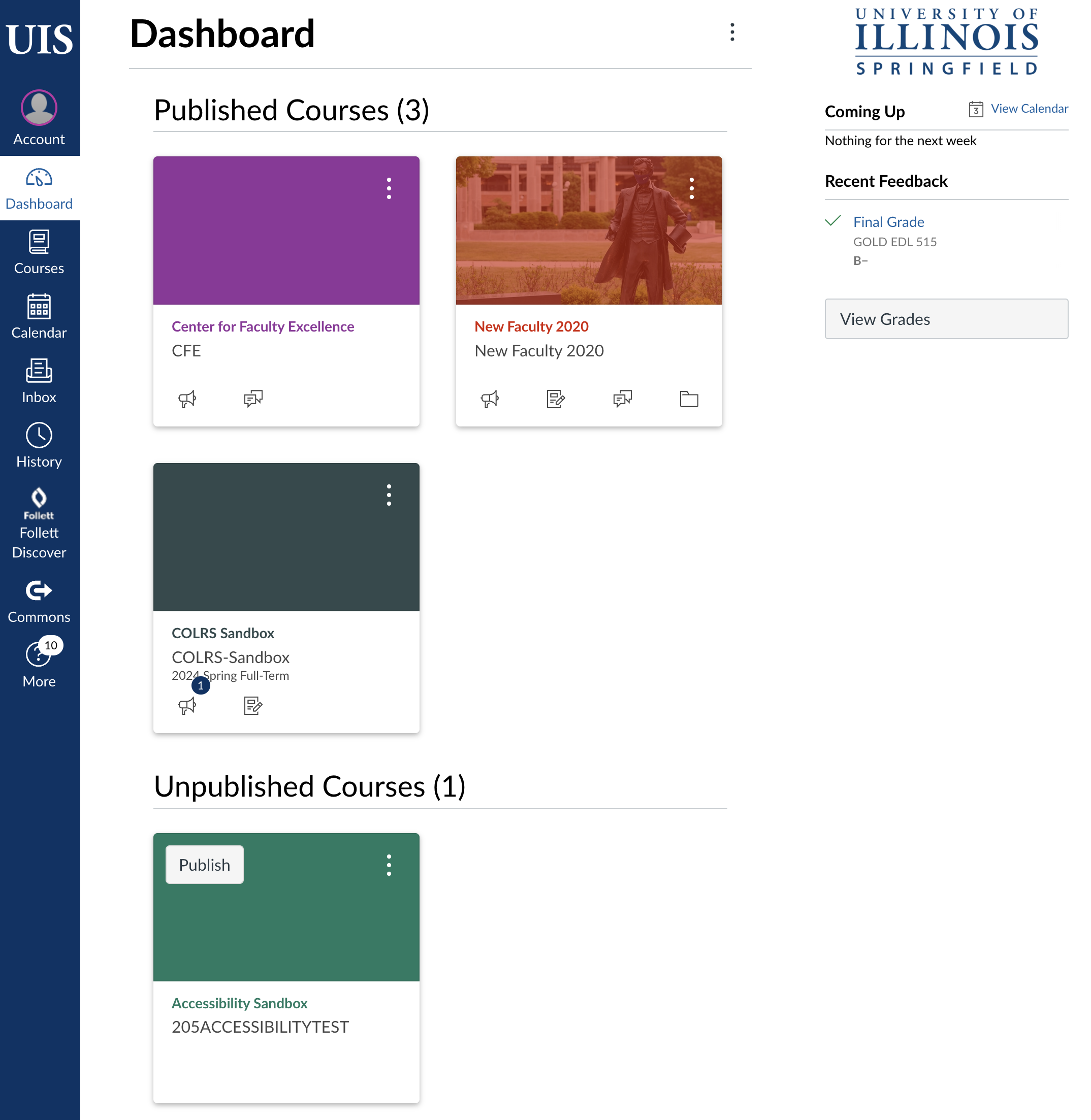
You will find your courses on Canvas and may customize the appear of your Canvas Dashboard (shown above). Instructors who have been hired and issued a UIS NetID will be able to log into Canvas.
In Canvas, course sites, instructors, and students are added and removed based on the UIS dynamic course schedule and Enterprise Self Service. Summer and Fall semester courses are created in Canvas in late April. Winter and Spring semester courses are added in early November. If you don't see your upcoming courses and are listed as the instructor on the Course Schedule, then contact COLRS and we will assist you. If you are not listed as the instructor, then contact your Dean's office to be added to the official Course Schedule.
Students are enrolled approximately two weeks before each semester begins. Instructors who are listed in the course schedule can view course rosters and obtain lists of student email addresses.
Instructors are welcome to publish their Canvas course sites before the first day of class to allow students early access to course syllabi and materials. Canvas courses will be automatically be made available to students at 12:01 a.m. on the first day of classes each term. Deans receive a list of blended and online courses that do not contain an updated syllabus and/or learning materials that would be visible to students on the Thursday before courses begin.
Combining courses in Canvas
Combining courses in Canvas moves the enrollments from an individual course to another course. This feature is helpful for instructors who teach several sections of the same course, or whose courses are cross-listed in several different departments, and only want to manage course data in one location. Instructors can allow students to view users in other sections or limit them to only view users in the same section.
If you would like course sections combined, please reach out to COLRS. Please include a list of courses you'd like to have combined in your communication.
Copying and sharing course content
Instructors may use the Canvas import feature to copy content. Learn more on the Copying Canvas Content page.
At UIS, we designate certain courses as gold courses to enable collaborative content development and content sharing while ensuring student data privacy. Instructors may request gold courses from COLRS. Learn more about gold course sites.
Canvas syllabus template
Every UIS courses is required to have a syllabus to students with learning objectives and other required information and statements. The provost makes accessible Word syllabus templates available. COLRS recommends using the Canvas native course syllabus template; it is accessible, provides many formatting options, works well on mobile devices, and is printable.
Adding videos to Canvas
Intentionally designed instructional videos are powerful learning tools for students. At UIS, Kaltura Media is the video management solution. Kaltura is accessed through the My Media link in Canvas courses. Faculty and students may upload videos created on devices (camcorders, phones, etc.) or record webcam or screen capture videos through Kaltura.
Canvas Basics
In the workshop recording below, COLRS staff walks through some of the most important features of Canvas, including what links are in the global menu, how to put content in a Canvas course, and how to ensure students see the most important updates.
Entering Final Grades in Self-Service
Final grade submission deadlines are listed on the academic calendar for each term. Full final grade submission instructions are available in the Other Events/Dates section at the bottom of the Office of Registration website. Find the "grades due" events to view the instructions. Learn more about how to enter final grades in Enterprise Self-Service.
Getting help with Canvas
If you've never used Canvas before, you've come to the right place! The COLRS team is ready to help you. You're welcome to reach out to COLRS by email (colrs@uis.edu), by phone (217-206-7317), or by requesting a one-on-one appointment. Our staff is available Monday through Friday from 8:00 a.m. to 5:00 p.m. You may also be able to find the answer to your question by exploring the Canvas LMS Instructor Guide on the Instructure website.