To manage Campus Announcement submissions from the Campus Communications Form, go to the Campus Communication dashboard page.
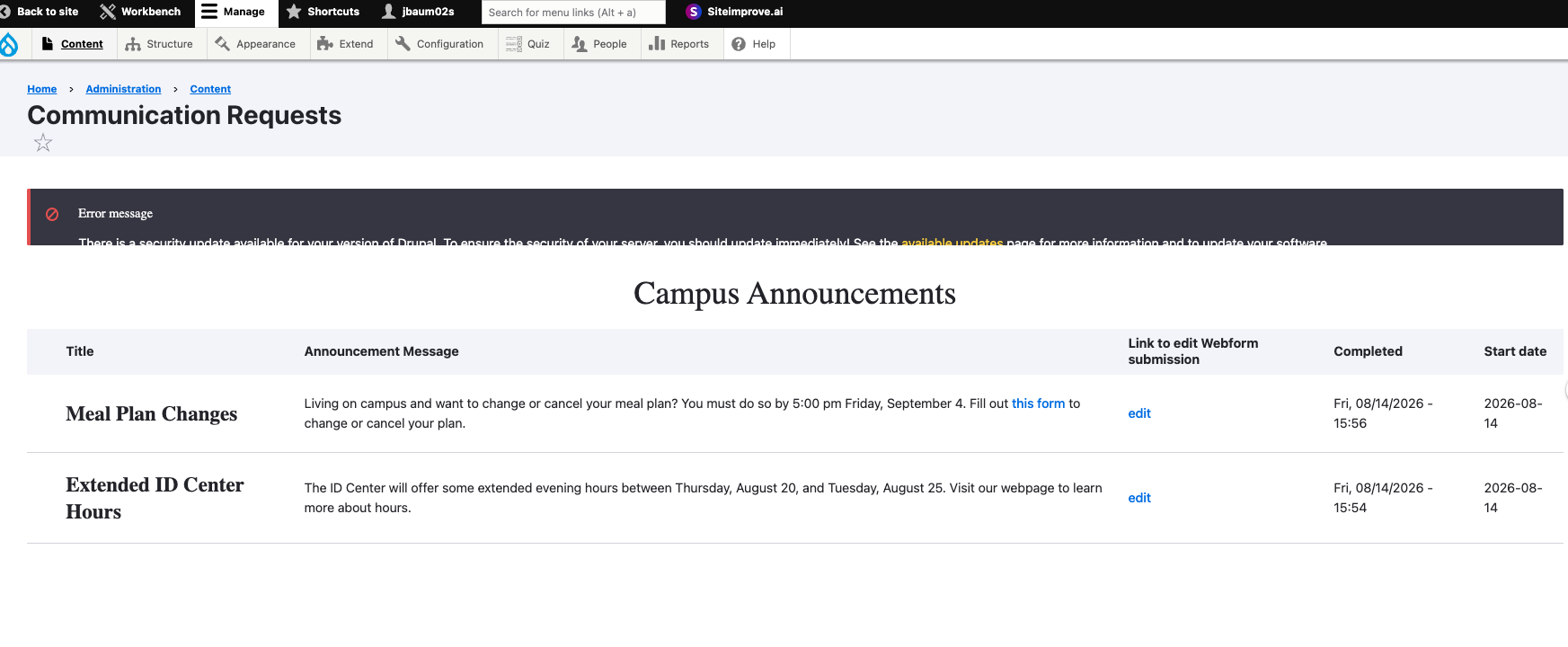
Click Edit next to the submission to review. Make any necessary updates.
It is imperative to ensure the content follows the content review guidelines and adheres to accessibility compliance requirements. If inaccessible content is published by form administrators it will result in loss of publishing and approval priveleges. For ex. below the link text below is inaccessible and instead of generic 'this form', the link title needs to match the page title it is linking to, 'Meal Plan Request Form'.
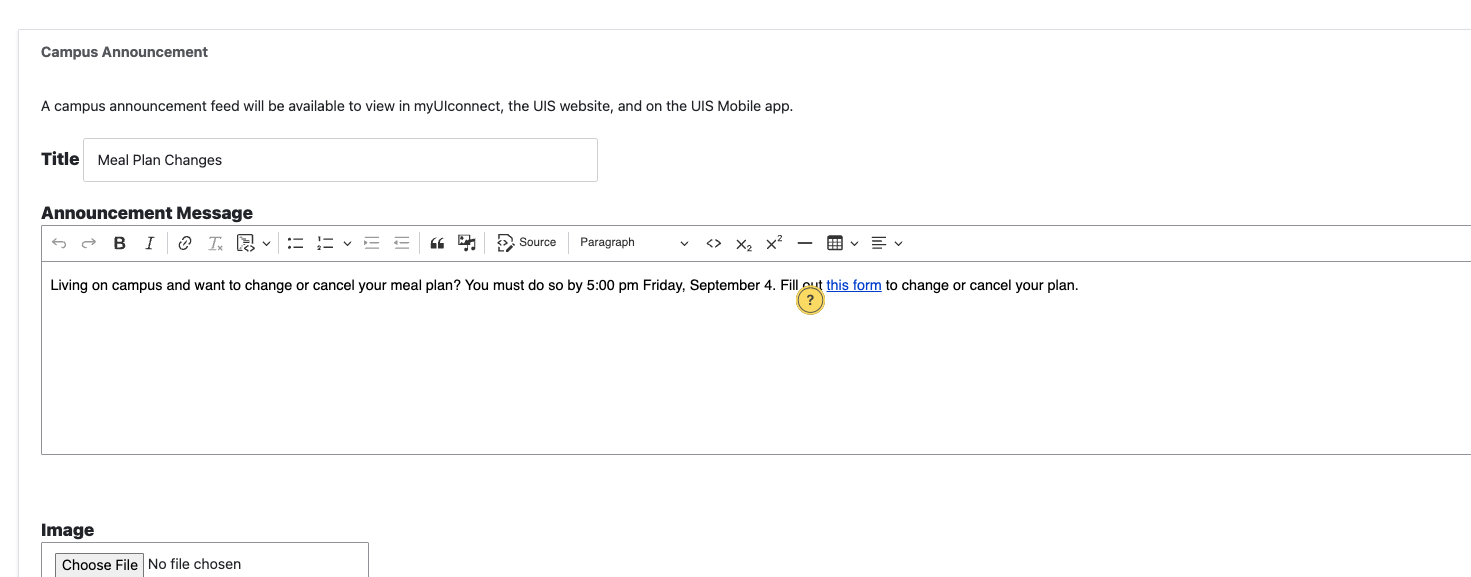
Users can submit images, but ensure alt text is included for all images for accessibility.
Start date - required to be posted to campus announcements.
End date - only necessary if the announcement is meant to persist for multiple days.
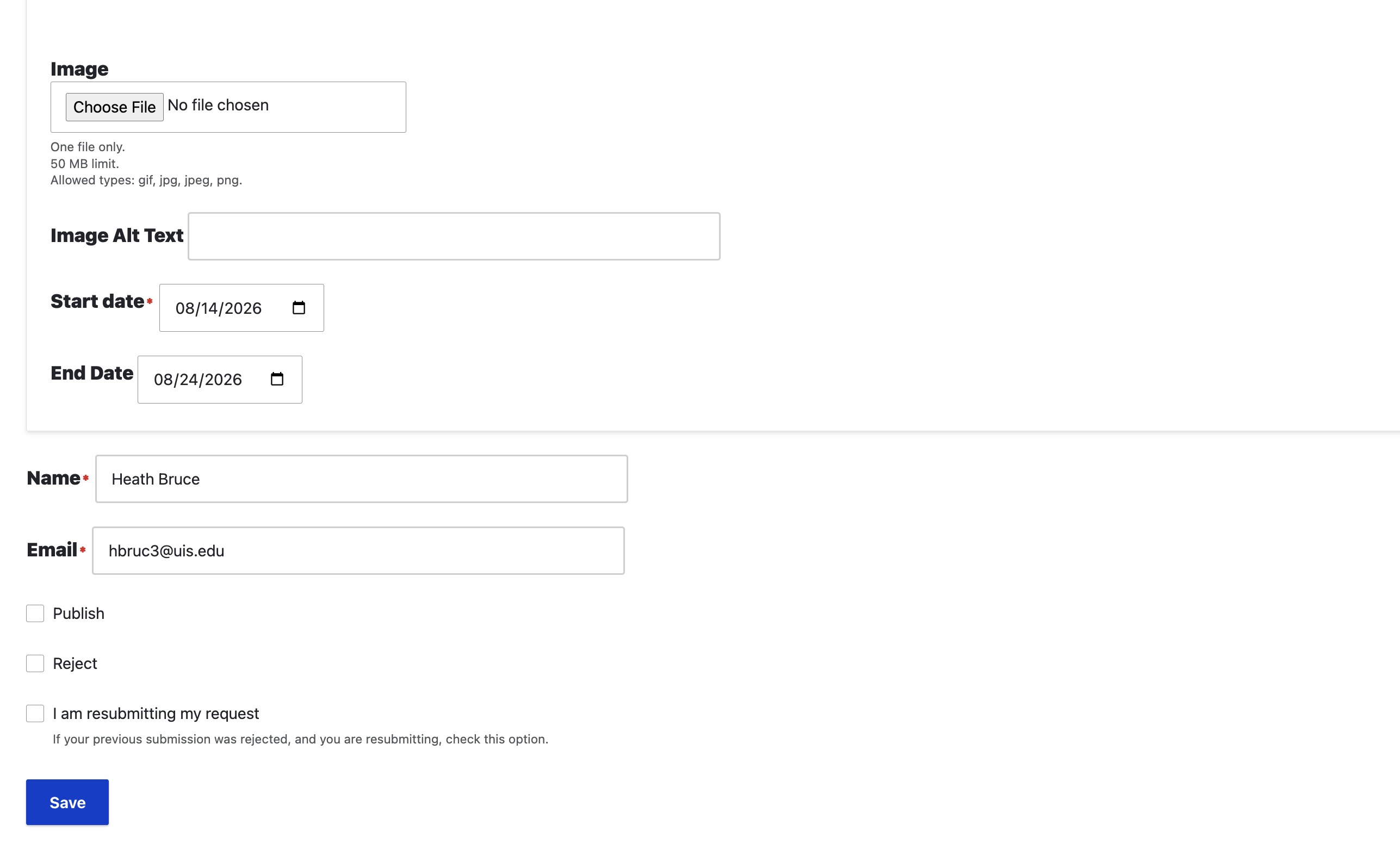
Form administrators have the option to Publish or Reject the announcement or mobile app notification.
If published, the announcements will show on the Campus Announcement page. If rejected, an email is sent to the person who submitted the request with a link for them to have the option to edit their announcement.
In order for edited form submissions to show up in the Communication Dashboard, users need to check 'I am resubmitting my request'.