The Office of Web & Digital Strategy at the University of Illinois Springfield is passionate about accessibility. For the web, not only does law require it, it is the right thing to do.
The Illinois Information Technology Accessibility Act (IITAA) requires Illinois agencies and universities to ensure that their web sites, information systems, and information technologies are accessible to people with disabilities.
The federal government has released a Notice of Proposed Rulemaking on Accessibility on Web Information and Services on State and Local Government Entities. It proposes to adopt the Web Content Accessibility Guidelines (WCAG) Version 2.1, Level AA as the technical standard that state and local governments would need to follow.
The Office of Web & Digital Strategy has made accessibility a focus for the architecture of official UIS website. This accessibility continues to maintain that quality level each year.
Web Accessibility Guidelines for UIS Websites
The following are some important guidelines to help UIS website Editors and Authors maintain accessibility for their web pages.
1) Use heading styles in semantic structure
Heading styles are given to create sections and subsections on your web page.
- Headings can be used throughout your page and should be properly nested (e.g. Heading 2, then Heading 3, then Heading 4, etc.). The title of the page is by default Heading 1.
2) Every image MUST have an Alt attribute
- All images should have an Alt attribute. For example, when you insert an image into your web page, remember to add a brief description of the image in the Alt Text field in the block settings in the right sidebar menu.
3) Link text should match the page title it is pointing to
- Avoid using vague titles like 'Click Here', 'Learn More', and 'Download' which do not tell the user where they will be directed to.
- Avoid repeating links text if possible since screen readers navigate pages using links and headings.
- Using the same text for links on the same page that point to different locations on the web will result in an accessibility error. Create your link text to be unique for different URLs.
View the full list of guidelines Web Content Accessibility Guidelines (WCAG) Version 2.1.
4) Videos must include captions or text alternative
The following is required to make Accessible Videos:
- Captions for prerecorded video with audio — synchronized captions must include dialogue and important non-speech sounds such as
[music],[applause], or[door slams]. This is WCAG 1.2.2, Level A. - Captions for live video — live synchronized media with audio needs live captions. This is 1.2.4, Level AA.
- Audio description for prerecorded video — important visual information that cannot be understood from the soundtrack should be described for people who are blind or have low vision. At Level AA, this is 1.2.5. If everything important visually is already explained in the normal audio, an additional audio-description track is not necessary.
- Alternatives for video-only or audio-only media — for example, a text alternative or descriptive audio for a silent instructional video. This is covered by 1.2.1, Level A.
- Accessible video-player controls — play/pause, volume, captions, fullscreen, timeline, etc. should be operable by keyboard, have visible focus indicators, and expose meaningful names/states to assistive technology.
- Avoid inaccessible autoplay — users need a way to pause or stop moving/audio content when applicable. Audio that automatically plays can also cause problems for screen-reader users.
- Do not rely on visuals alone — instructions such as “click the green button shown here” should also identify the control through spoken or textual information.
- Provide a transcript when useful — a transcript isn't always a substitute for required captions or audio description, but it greatly improves usability, searchability, and access for users who prefer text.
5) Check PDFs for accessibility prior to uploading
Before uploading a PDF to the website, open it in Adobe Acrobat Pro and run All Tools → Prepare for Accessibility → Check for Accessibility. Review and fix any flagged issues—especially document title, heading structure, reading order, image alt text, form labels, and color contrast—then rerun the check to confirm the PDF passes. Find more information on PDF Accessibility resource from the Office of Digital Accessibility.
6) Make sure links open in the same window
Links should open up in the same window. If you need to have a link open up in a new tab or window, you will need to indicate that it does in parentheses at the end of the link text.
Web Accessibility Evaluation
- Evaluate a page using Siteimprove
- Evaluate a web page using W3C Validator
As part of our ongoing commitment to ensuring our website remains fully compliant with accessibility standards, we are implementing a critical change in the role permissions for our site publishers. Effective August 1st 2025, all current roles with site publisher capability will be required to review the editoria11y accessibility module and correct any issues outlined before publishing content to the website. Additionally, they need to follow the Web Accessibility Guidelines above and Content Review Guidelines. This decision follows recent digital accessibility requirements set by the Department of Justice (DOJ) concerning digital accessibility under the Americans with Disabilities Act (ADA).
Role of All Site Editors and Publishers
The accessibility module allows editors and publishers to easily see when visiting your site pages, if there are any identified issues that need to be addressed. You can view the live or draft versions of the page to see if there are any issues. The tool only scans the content section of the page so excludes issues related to the page header, footer, and theme.
NOTE: All PDFs should be scanned with accessibility tools in native software before uploading to the site since this tool does not scan PDFs.
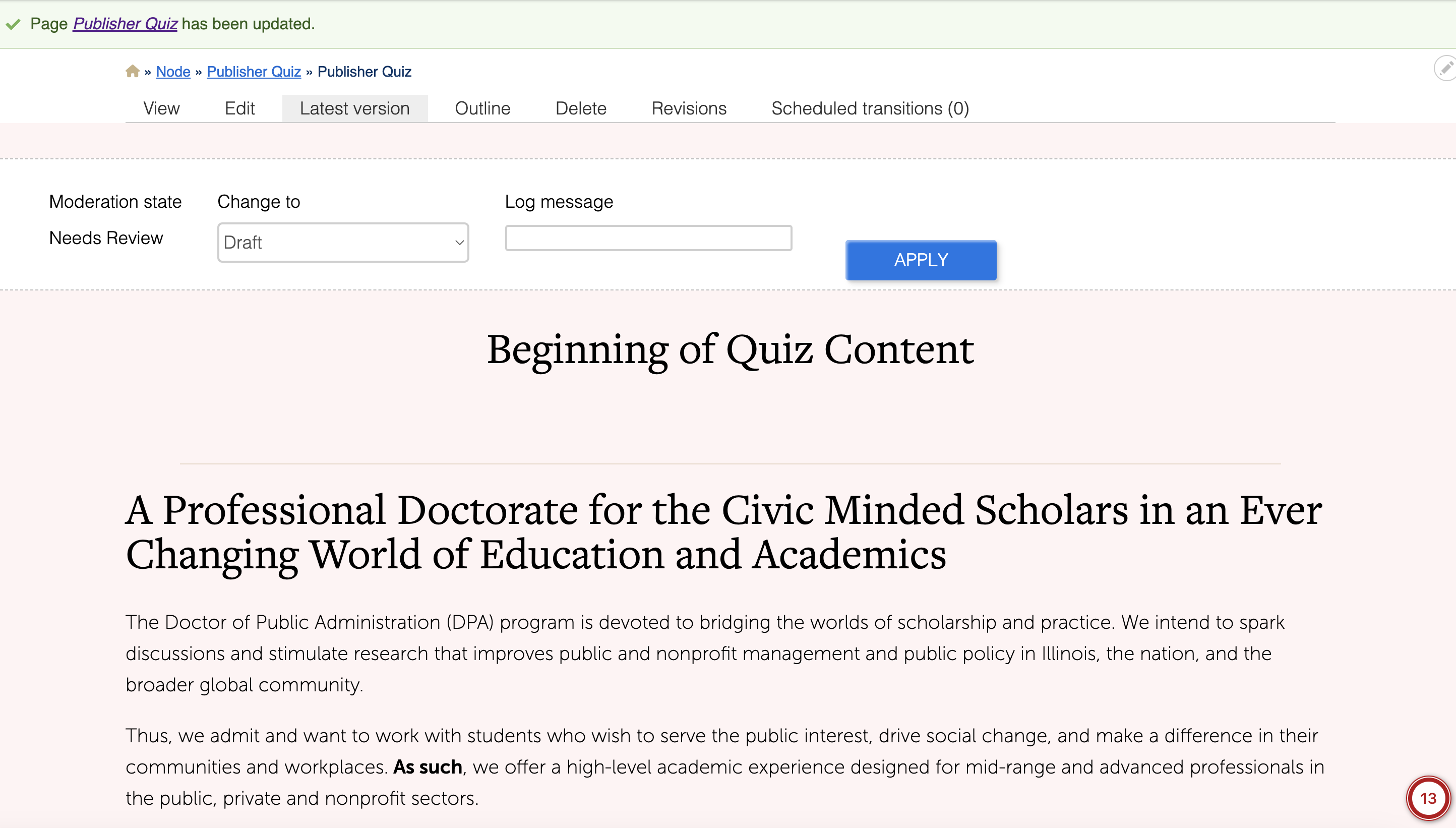
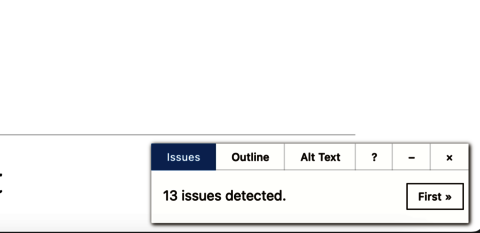
If you click on the red circle, it will help you navigate through the page to see the issues:
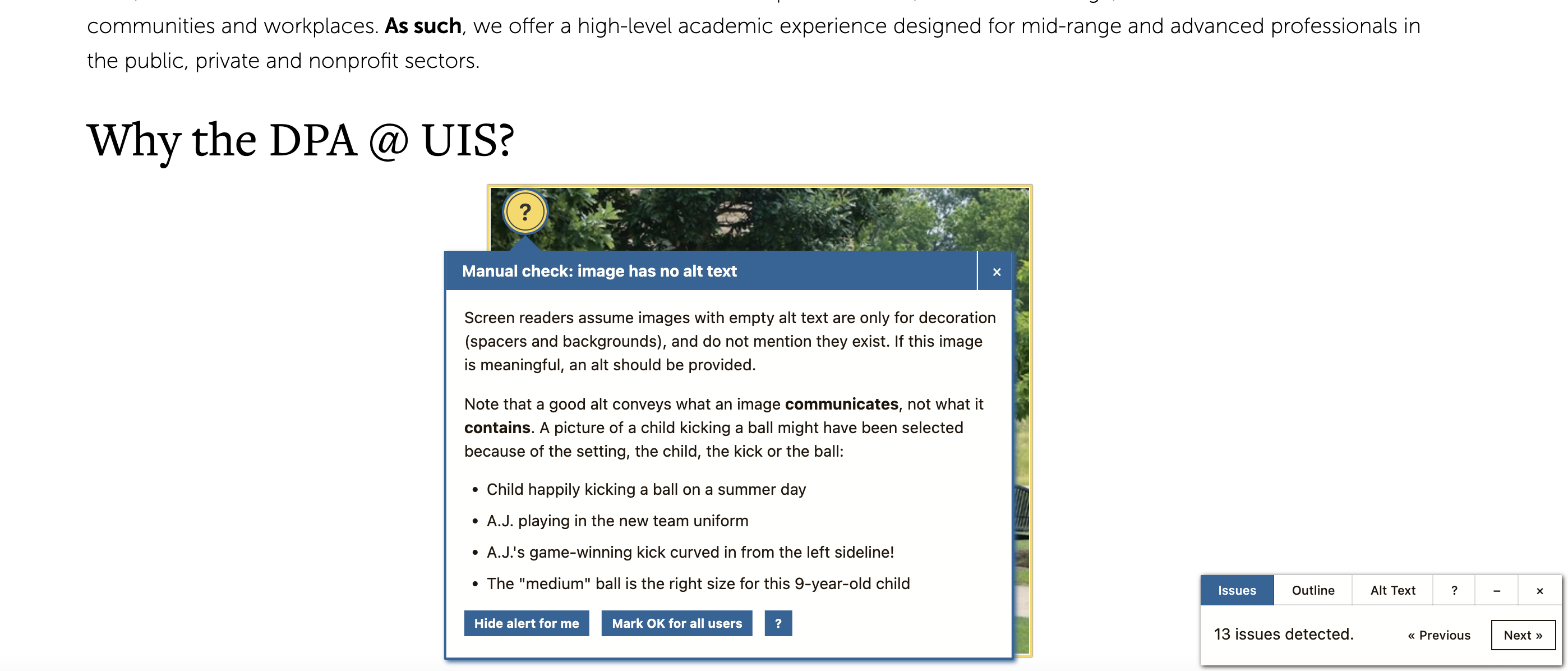
If you select the Outline tab, the accessibility checker will show you the outline of your page, to help you quickly identify issues.
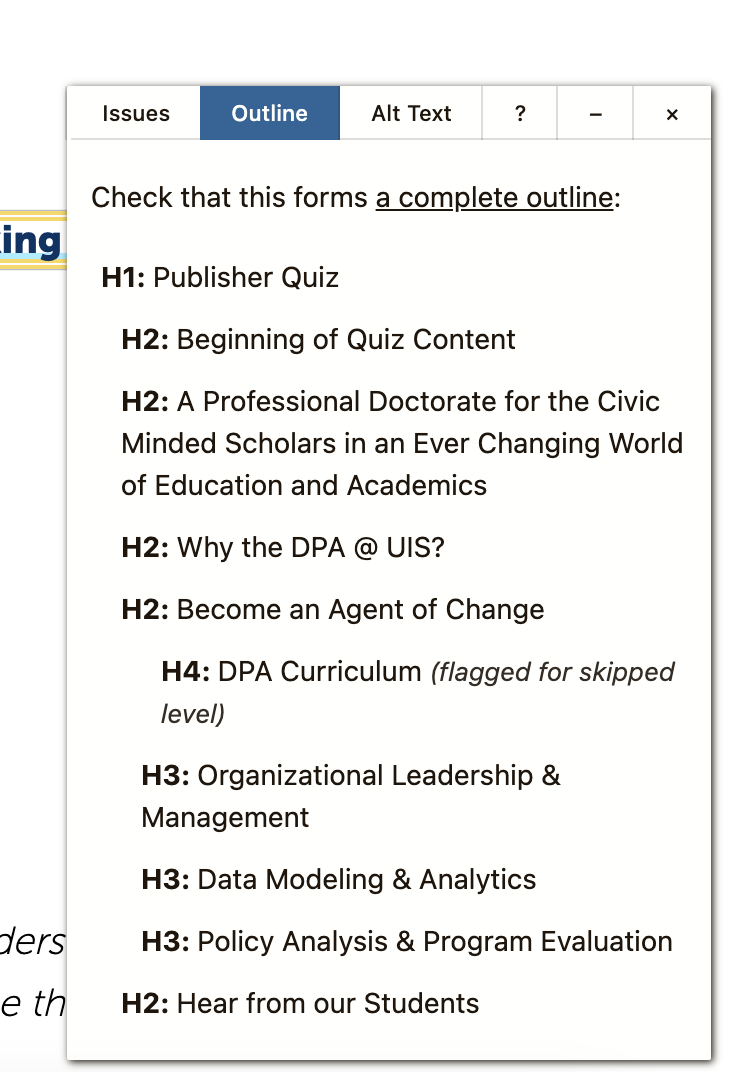
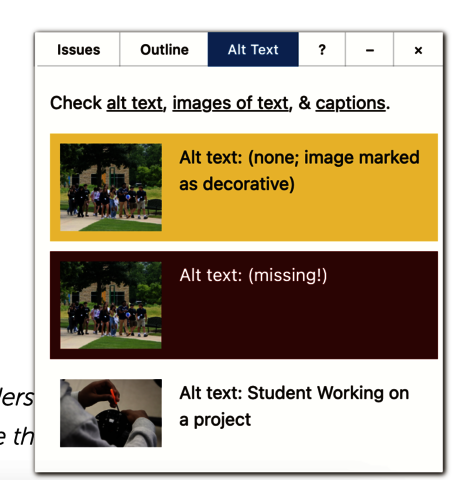
When you select the Alt Text tab, you will be show all the page images and any associated alt text, or an error if the alt text is missing.
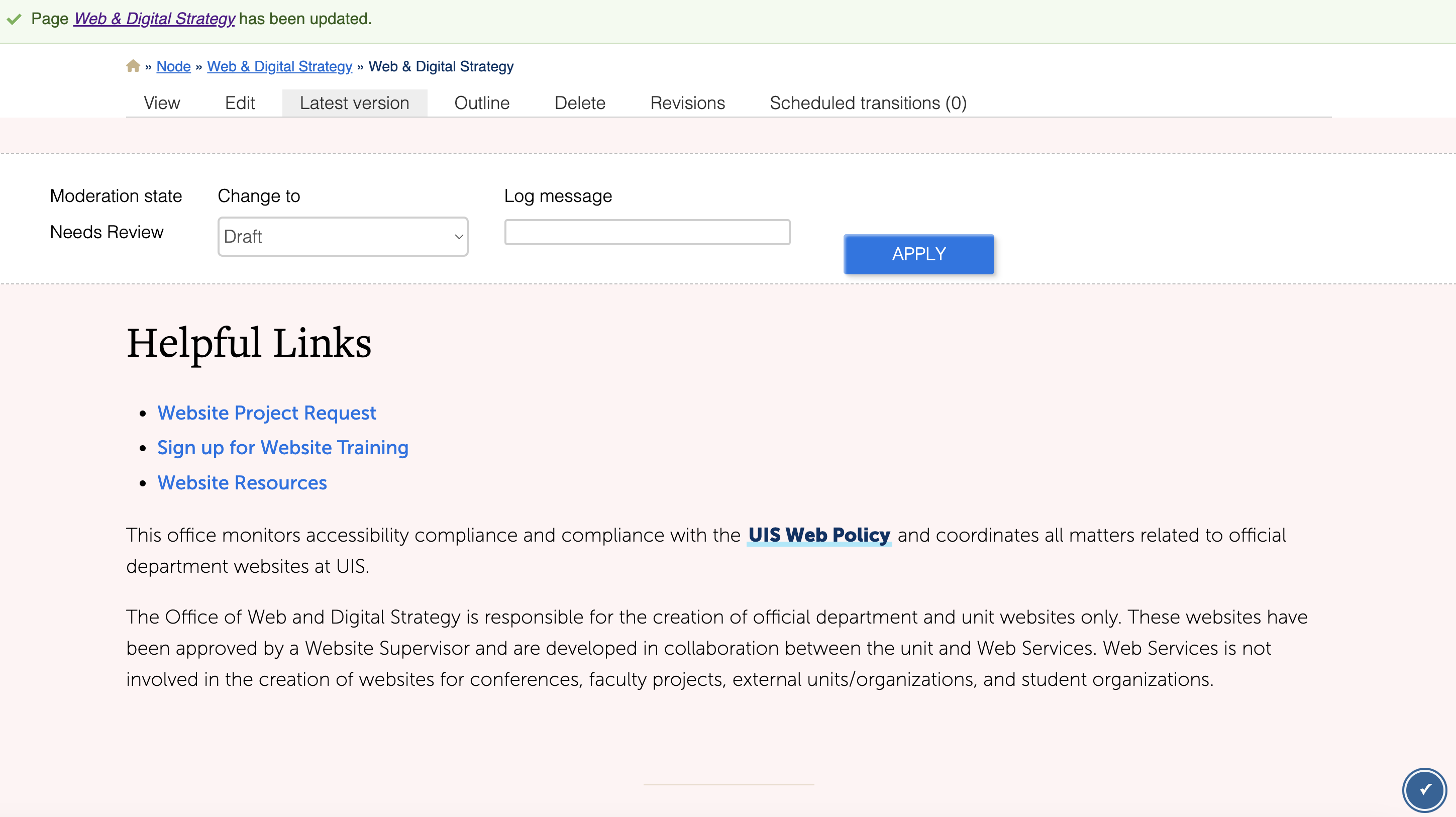
Once you have resolved your issues, you will see either a blue checkmark, if the page came back with no issues, you can then submit your page for Needs Review or Publish it, if you have publisher access.
If pages are submitted to the Needs Review that have accessibility issues, they will be sent back to the editor to resolve.
Additional Tools
Siteimprove chrome extension scanning tool, as well as check content against the Content Review Guidelines, prior to publishing. This extra step will ensure that all content meets the necessary accessibility standards before it reaches our audience.
Role of Publishers
Due to these changes in workflow, make sure to provide yourself additional time to take these extra steps to review content for publishing. If ever in doubt, content can be submitted to the Needs Review queue and will be reviewed within 24 - 48 hours, on business days, and published if no issues are found. If the content requires additional updates, the WDS staff will reach out to the website publisher with more information. In the event of an emergency and you need immediate updates, email web@uis.edu, high priority with the link to the content.
Loss of Permissions
If publishers are found to publish content that is inaccessible, their permissions will be changed to editor following the 2nd infraction. However, in order to adhere to the new compliance requirements by the Department of Justice, any infraction found after April 1, 2027 will result in automatic loss of publishing permissions.
Publisher privileges can be restored if the user has consistently submitted accessible content to the 'Needs Review' queue for at least 3 months and they take an additional accessibility training.